Getting Started: Create Your First Resume in 5 Minutes
Create a professional resume in 5 minutes with Resume Builder HQ. Pick a template, fill in your details, and download your resume as PDF or Word. No sign-up required.
Last updated 2026-08-19
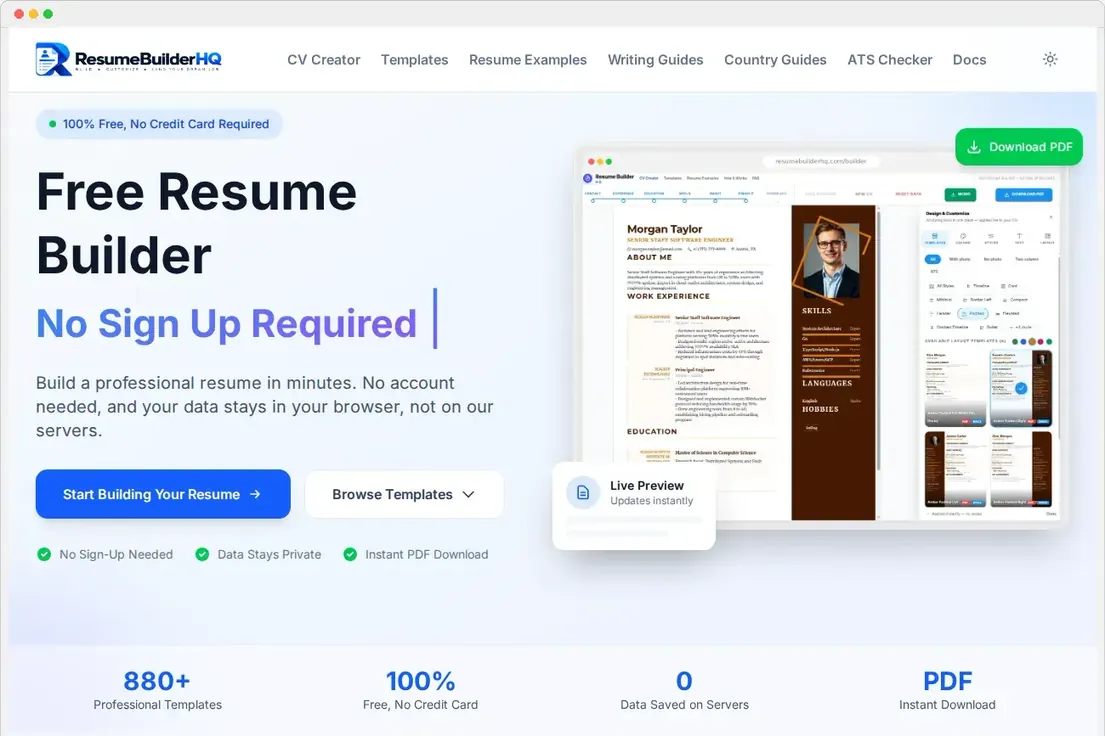
The Resume Builder HQ free resume builder turns your career history into a clean, ATS-friendly resume. No account is needed and everything runs in your browser. This quickstart shows the whole flow from start to finish in about five minutes.
Tip
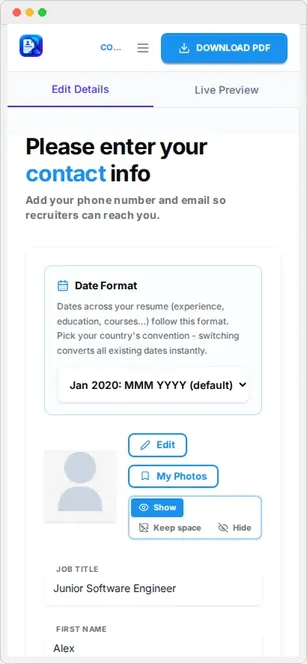
Everything, including this documentation, also adapts to dark mode automatically. The screenshots in these guides use the light theme to keep text easy to read.
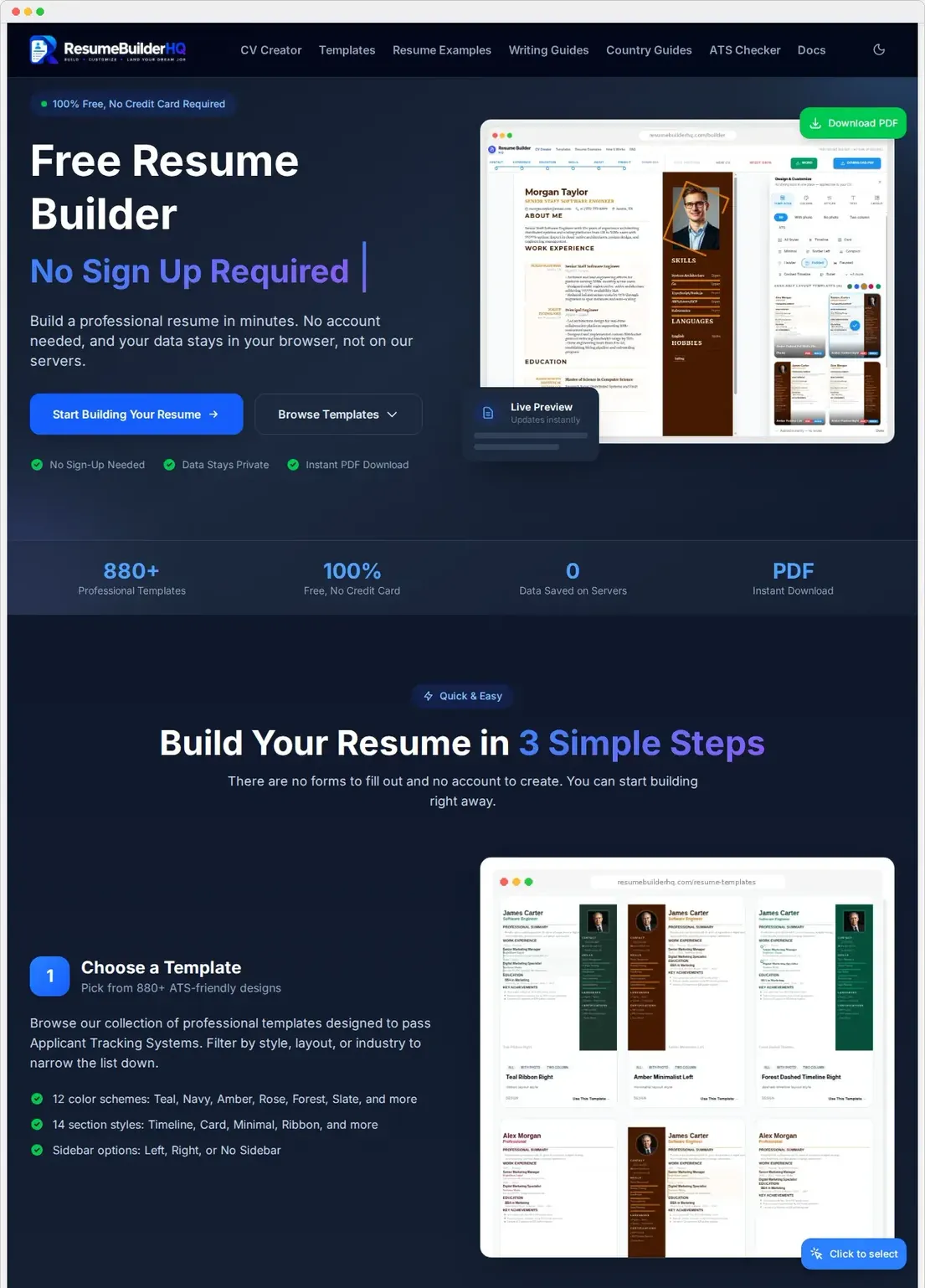
Step 1 - Open the resume builder
Go to the homepage and click Build My Resume in the header, or open CV Creator from the main menu. The builder opens on the Contact step with an empty draft ready.
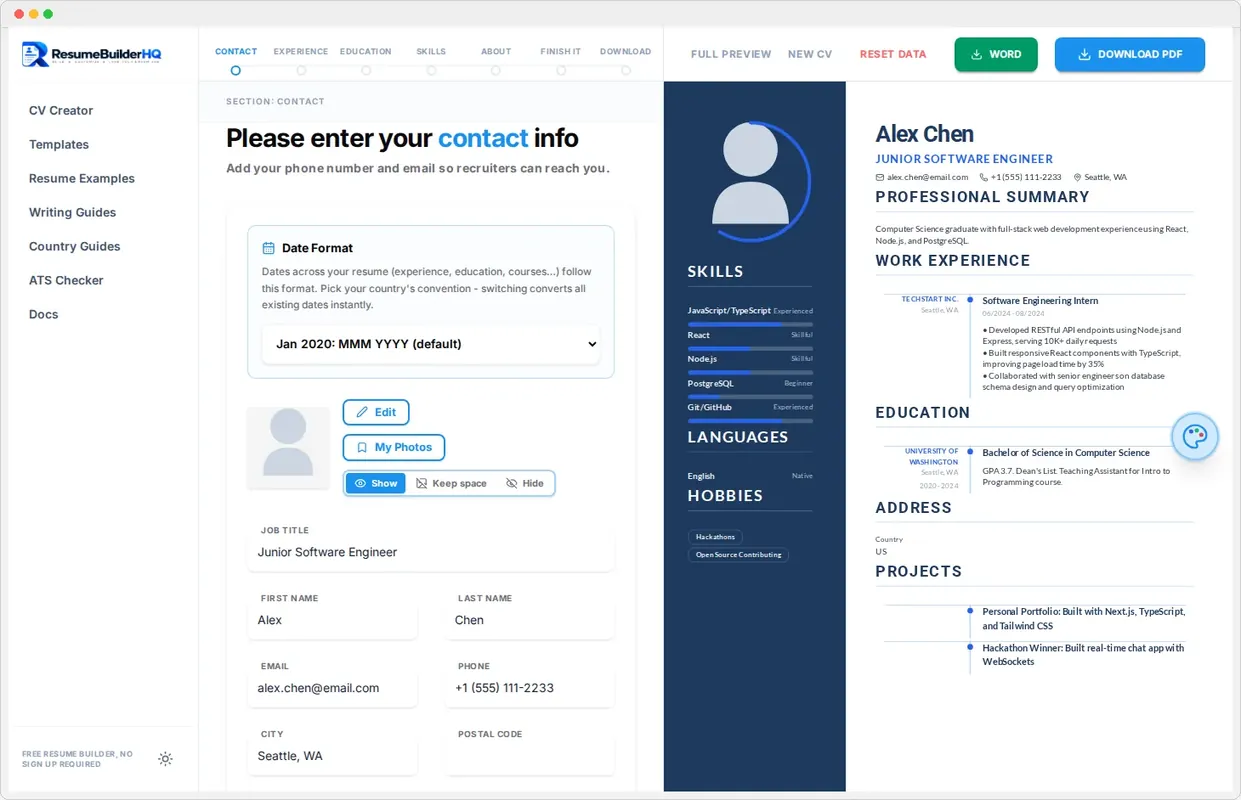
Step 2 - Pick a template
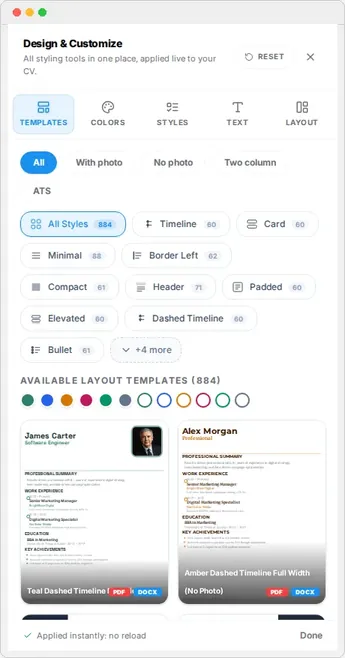
Your resume already uses a default design. To change it, click the floating palette button on the right edge of the CV preview. This opens the Design & Customize rail with five tabs: Templates, Colors, Styles, Text, and Layout. Pick any template and it applies instantly.
Step 3 - Fill in your details
Move through the wizard one step at a time:
- Contact - your name, job title, contact details, photo, and date format.
- Experience - your work history with achievement bullets.
- Education - degrees, courses, and certificates.
- Skills - your hard and soft skills with levels.
- About - a short professional summary.
Changes save automatically as you type, so you can close the tab and come back later.
Step 4 - Review your resume
The Finish It step shows your whole resume on one page. Here you can edit any section, drag blocks to reorder them, and use the Add & Navigate Sections toolbar to manage extra sections like languages, hobbies, or references.
Step 5 - Download your resume
Open the Download step and choose how you want to export:
- Download PDF - a print-ready PDF in A4 or US Letter with a clean text layer.
- Download Word - an editable .docx file for further tweaks.
Tip
Next steps
That is the full five-minute flow. For deeper control over each part of the builder, explore these guides: