Style Your Resume Sections
Give each resume section a distinctive style: timeline, cards, minimal, ribbons, heading boxes, and more. Apply one style to every section at once.
Last updated 2026-08-19
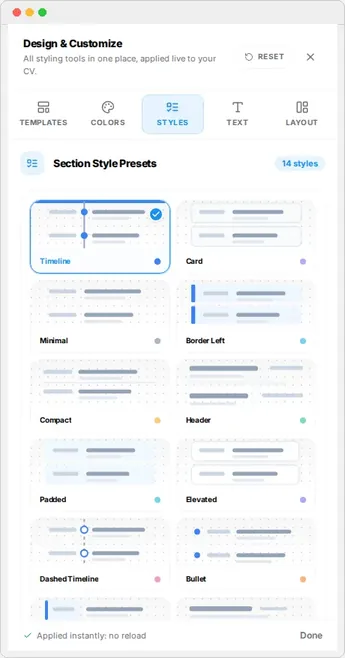
Section styles change how your headings and content blocks look. Where a template controls the overall layout, a section style controls the details inside it: timelines, cards, borders, and heading treatments.
Open the Styles tab
Open the Design & Customize rail and click Styles. The tab shows a set of visual thumbnails, one per style, so you can see the look before applying it.
Available styles
Resume Builder HQ ships a set of hand-tuned section styles:
- Timeline and Dashed timeline - chronological, visual progress.
- Card and Elevated - distinct content blocks.
- Minimal and Minimalist - clean, light heading treatments.
- Header - prominent section headers.
- Border left, Ribbon, Pinned - decorative accents.
- Compact - space for more content.
Tip
Apply and compare
Click a style to apply it to your whole resume instantly. Switch back and forth to compare. Your content and layout are always preserved, so no experiment is risky.