Add & Edit Your Profile Photo
Upload a profile photo, crop it in the built-in editor, add filters, and control visibility - show it, hide it, or keep a placeholder box for printing.
Last updated 2026-08-19
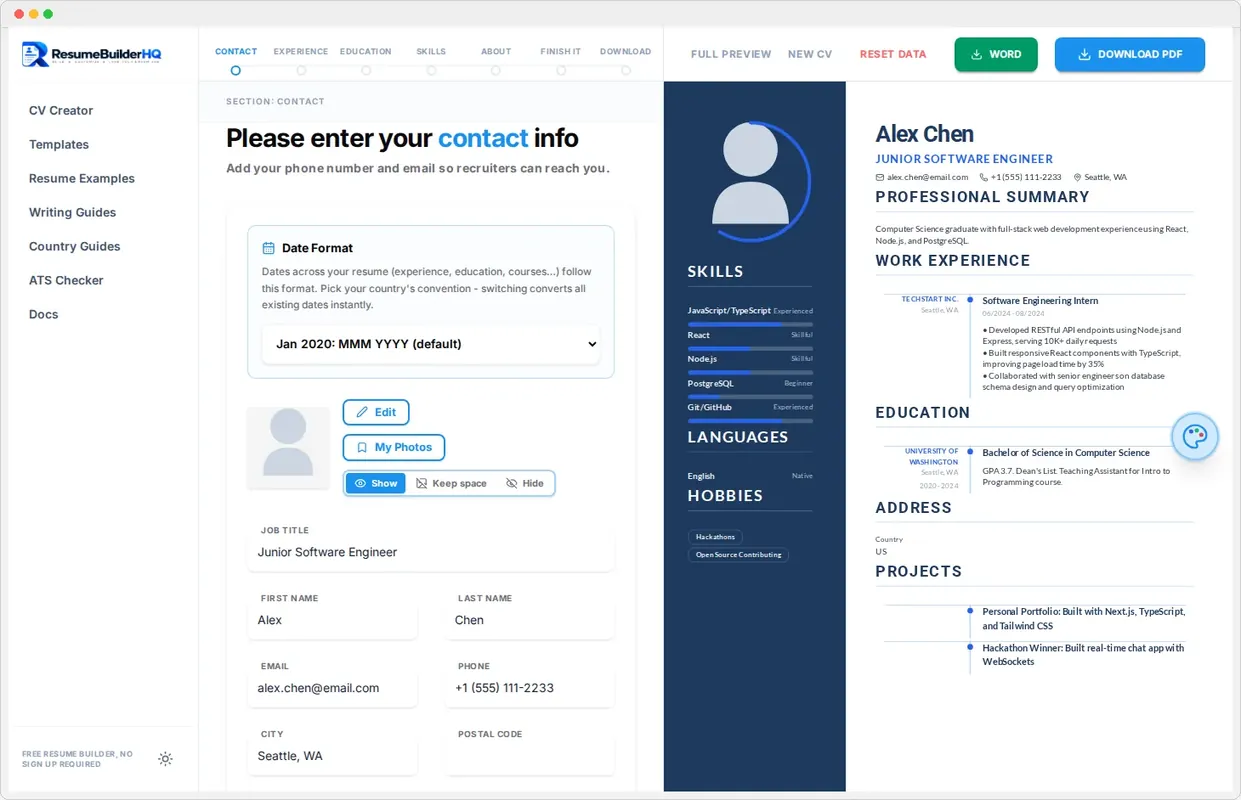
A professional photo makes a resume more memorable, and in many countries it is expected. The Resume Builder HQ photo tools let you upload, edit, and control your photo without leaving the builder.
Add a photo
In the Contact step, use the photo area to upload an image from your device or paste one from your clipboard. You can also keep a library of photos and reuse them later.
Crop and edit
The built-in photo editor lets you crop the image to frame your face. Set the crop to match your template's photo shape, whether circle, square, or rounded. Your edits apply live to the preview.
Tip
Add a filter
Apply a subtle filter to even out lighting and colors. Keep it light: the goal is a clean, professional image, not a dramatic effect.
Control photo visibility
The Layout tab and photo visibility control let you choose how the photo appears:
- Show - the photo appears on the resume and in the PDF.
- Hide - the photo is removed from the document.
- Placeholder - keep an empty box the same size so you can print and paste a photo later.
Note
Photo gallery
Uploaded photos are saved in your local photo gallery. You can manage, replace, or delete them from the gallery, and they stay in your browser only.