Control Layout, Margins & Photo Options
Refine your resume layout: sidebar position, margins, photo size and shape, borders, and page padding. Keep everything on one page with live page fitting.
Last updated 2026-08-19
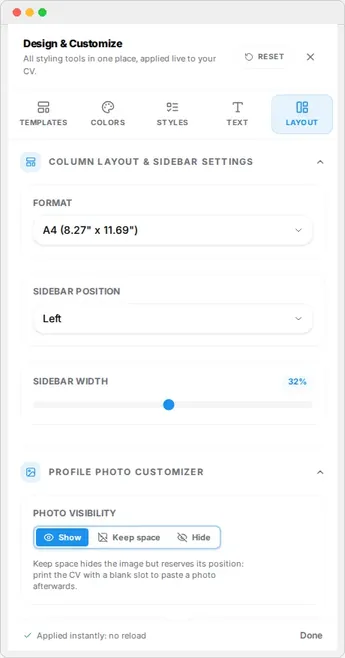
The Layout tab controls the physical structure of your resume: page size, margins, spacing, and how the sidebar and photo behave. These settings decide how much content fits on each page and how the document feels overall.
Choose the page size
Pick A4 or US Letter to match where you are applying. A4 is standard in most of the world; US Letter is standard in the United States and Canada. The export uses the same size you select.
Margins and spacing
Adjust page margins to control the amount of white space around the content. Smaller margins fit more text; larger margins look more airy. Section spacing controls the gap between sections.
Tip
Photo and sidebar
The Layout tab also controls the photo size and shape and the sidebar position (left, right, or hidden). Some templates put the photo on the sidebar, others at the top. Set it the way your country's convention prefers.
Watch the preview
Every layout change appears in the preview instantly. Keep an eye on where sections break between pages and adjust until the resume flows the way you want.