Customize Resume Colors
Change your resume color scheme with live previews. Pick from swatch presets or fine-tune body and sidebar colors. Reset anytime with one click.
Last updated 2026-08-19
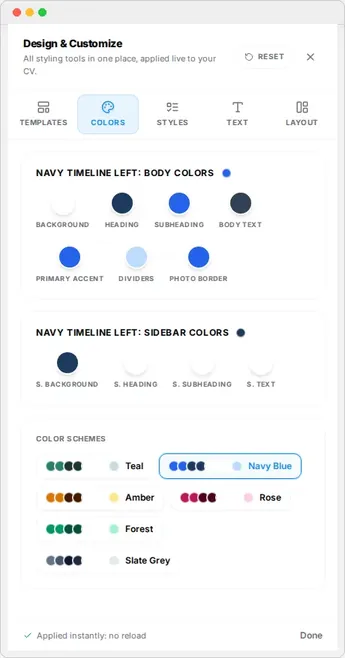
Color is the fastest way to give your resume a personality. The Colors tab in the Design & Customize rail changes your whole color scheme in one click, and every change shows in the live preview immediately.
Pick a preset color scheme
Open the Design rail and click Colors. You will see a set of preset color schemes built for each template. Click one and your entire resume updates: headings, sidebar, accents, and borders.
Presets are the safest starting point because they are tuned to look balanced with your template's layout.
Fine-tune individual colors
For full control, adjust the body color and sidebar color directly. Use this when you need a specific brand color or want a combination that the presets do not include.
Tip
Apply and reset
Colors apply instantly, so you can try several in seconds. If you do not like the result, click Reset in the rail header to restore the template defaults.