Resume Builder Overview: The 7-Step Wizard
Learn how the Resume Builder HQ editor works. Explore the 7-step wizard, the live preview, and every tool at your fingertips for building an ATS-friendly resume.
Last updated 2026-08-19
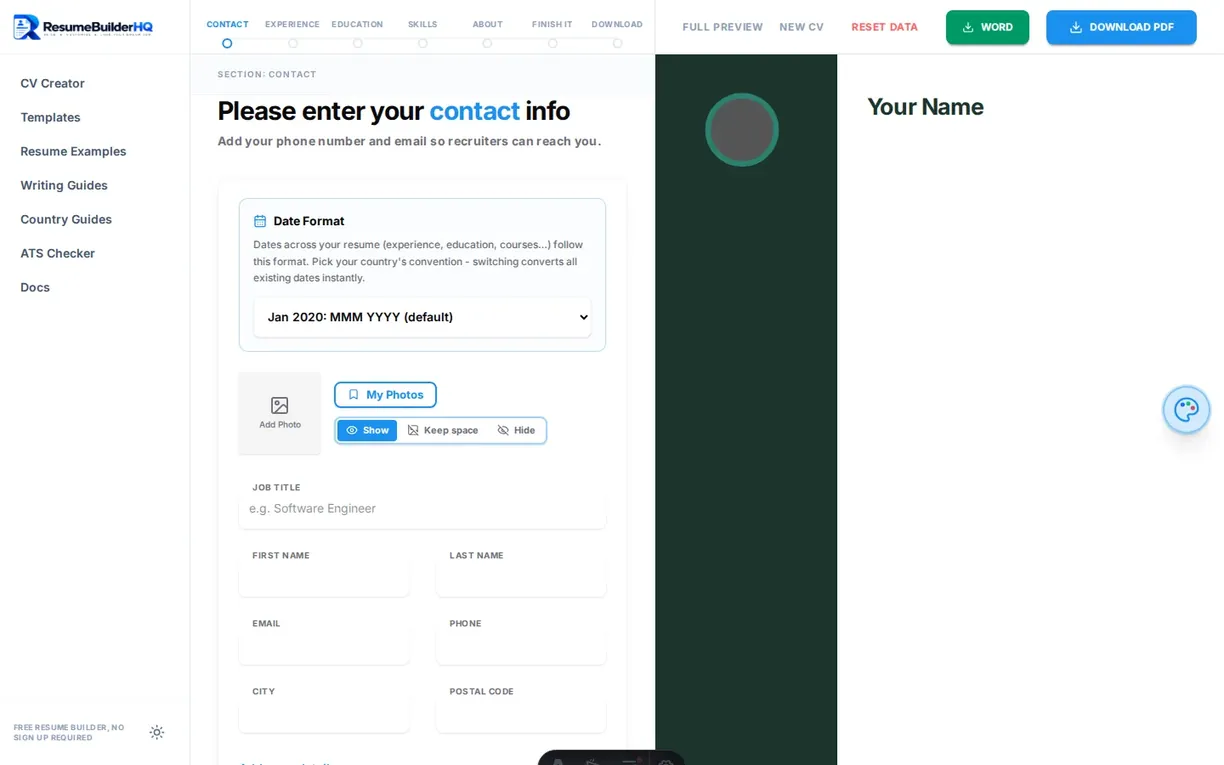
The Resume Builder HQ editor is a complete resume-making workspace. Everything works in your browser, so there is nothing to install and no account to create. The editor is divided into three main areas.
The 7-step wizard
The top bar of the editor shows seven steps: Contact, Experience, Education, Skills, About, Review, and Download. You can move through them in order, click any step to jump straight to it, or use the Continue and Back buttons at the bottom of each panel.
Each step focuses on one part of your resume. The progress line in the top bar fills as you complete each stage, so you always know where you are.
Live preview
The right side of the screen shows your resume live. Every change you make in the editor appears instantly in the preview. The preview uses a fixed page width, so what you see is close to what your final PDF will look like.
Use the Full Preview button to hide the editor and see your resume at full size. Click the green, red, or blue palette button on the preview edge to open the Design & Customize rail.
The Design & Customize rail
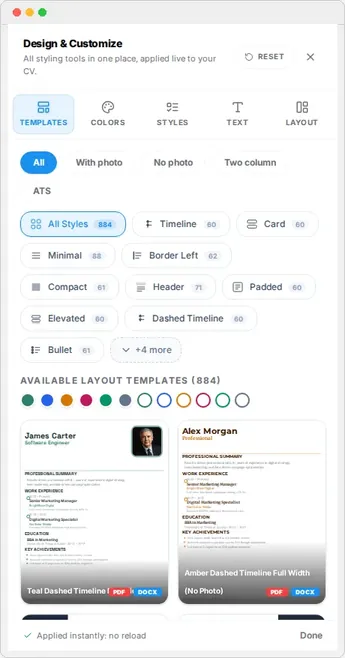
The floating palette button on the right edge of the preview opens the design rail. It contains every styling tool in one panel:
- Templates - switch between 880+ designs.
- Colors - change your color scheme.
- Styles - pick a style for your sections.
- Text - adjust fonts and sizes.
- Layout - control margins, sidebar, and photo options.
Changes apply instantly, so you can compare designs side by side as you work.
Dark mode support
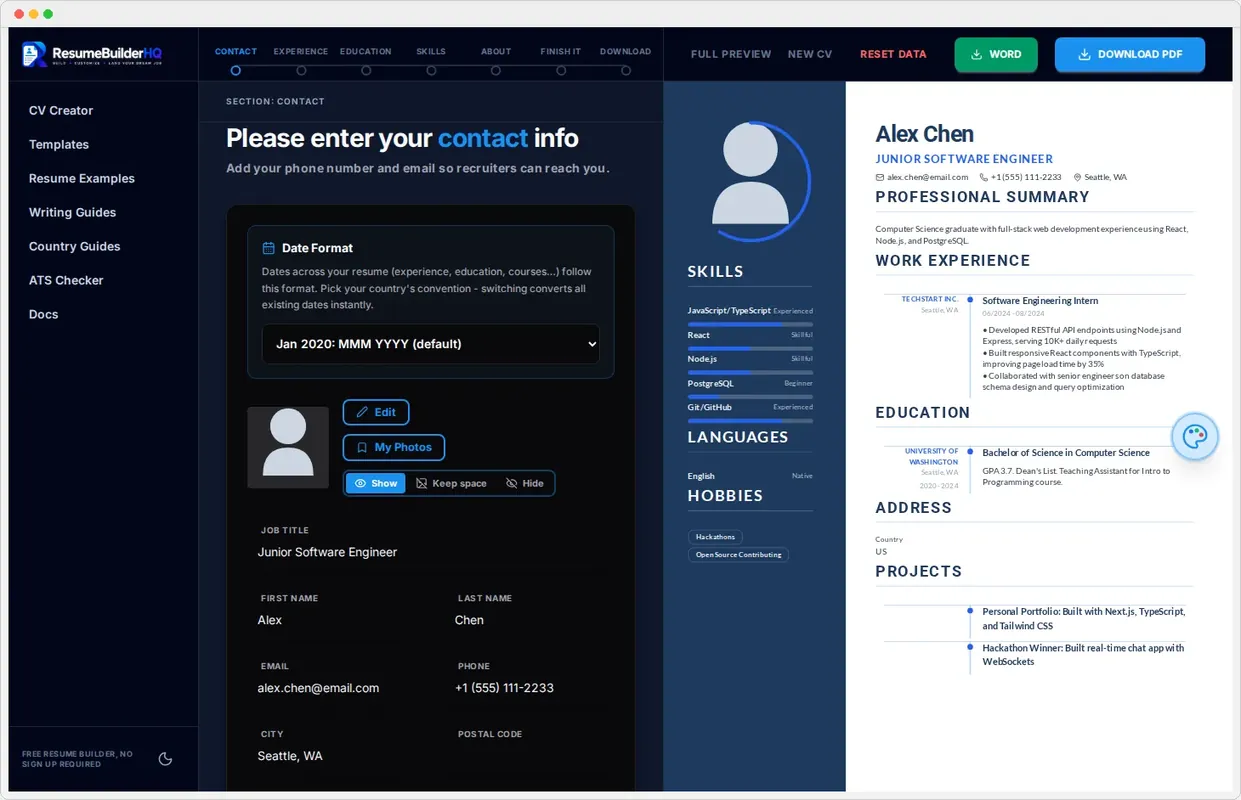
The builder follows your browser theme. In dark mode the editor and preview use a darker palette, which is easier on the eyes in low light. Your resume document itself keeps its chosen design so the export looks the same in any theme.
Autosave and drafting
Your resume saves automatically as you type. Autosave uses your browser's local storage, which means your draft persists even if you close the tab or the browser. Nothing is uploaded to a server.
Use New CV to clear the draft and start fresh, or Reset Data to delete all saved resumes, photos, and gallery data from your browser.
Note
Next: start your first resume
Ready to build? Head to the Getting Started guide for the fastest route to a finished resume, or go straight to Step 1 - Contact.